Frontend development
Frontend (old) development dependencies
When developing the frontend you use the Vue.js frontend server. Changes will be picked up automatically
as soon as a .vue file is saved without having to rebuild the frontend or even refresh your browser.
If you develop a new feature, consider changing to frontent-ng, the old frontend is likely to be deprecated in 2023.
First we need to get an interactive shell to the container to install the frontend modules:
$ docker compose exec timesketch yarn install --cwd=/usr/local/src/timesketch/timesketch/frontend
$ docker compose exec timesketch yarn run --cwd=/usr/local/src/timesketch/timesketch/frontend build --mode development --watch
Then inside the container shell go to the Timesketch frontend directory.
! cd /usr/local/src/timesketch/timesketch/frontend
Note that this directory in the container is mounted as volume from your local repo and mirrors changes to your local repo.
Install node dependencies
! npm install
This will create node_modules/ folder from package.json in the frontend directory.
! yarn install
Tweak config file
- In your
timesketchdocker container, edit/etc/timesketch/timesketch.confand setWTF_CSRF_ENABLED = False.
Start the VueJS development server
Follow the steps in the previous section to get dependencies installed and the config file tweaked.
You need two shells:
-
Start the main webserver (for serving the API etc.) in the first shell:
bash $ CONTAINER_ID="$(docker container list -f name=timesketch-dev -q)" $ docker exec -it $CONTAINER_ID gunicorn --reload -b 0.0.0.0:5000 --log-file - --timeout 600 -c /usr/local/src/timesketch/timesketch/gunicorn.conf.py timesketch.wsgi:application -
Start the development webserver in the second shell:
bash
$ CONTAINER_ID="$(docker container list -f name=timesketch-dev -q)"
$ docker compose exec timesketch yarn run --cwd=/usr/local/src/timesketch/timesketch/frontend serve
This will spawn a listener on port 5001. Point your browser to http://localhost:5001/login, login with your
dev credentials, and you should be redirected to the main Timesketch page. All code changes in .vue files will
be instantly picked up.
Frontend-ng development
When developing the frontend-ng you use the Vue.js frontend server. Changes will be picked up automatically
as soon as a .vue file is saved without having to rebuild the frontend or even refresh your browser.
Install dependencies
Inside the container shell go to the Timesketch frontend-ng directory.
! cd /usr/local/src/timesketch/timesketch/frontend-ng
Note that this directory in the container is mounted as volume from your local repo and mirrors changes to your local repo.
Install node dependencies
! npm install
This will create node_modules/ folder from package.json in the frontend directory.
! yarn install
Tweak config file
- In your
timesketchdocker container, edit/etc/timesketch/timesketch.confand setWTF_CSRF_ENABLED = False.
Start the VueJS development server
You need two shells:
-
Start the main webserver (for serving the API etc.) in the first shell:
bash $ CONTAINER_ID="$(docker container list -f name=timesketch-dev -q)" $ docker exec -it $CONTAINER_ID gunicorn --reload -b 0.0.0.0:5000 --log-file - --timeout 600 -c /usr/local/src/timesketch/timesketch/gunicorn.conf.py timesketch.wsgi:application -
Start the development webserver in the second shell:
bash
$ CONTAINER_ID="$(docker container list -f name=timesketch-dev -q)"
$ docker compose exec timesketch yarn run --cwd=/usr/local/src/timesketch/timesketch/frontend-ng serve
This will spawn a listener on port 5001. Point your browser to http://localhost:5001/login, login with your
dev credentials, and you should be redirected to the main Timesketch page. All code changes in .vue files will
be instantly picked up.
If you already have a yarn process running with the "old" frontend, it might not work.
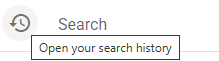
Tooltip Usage Guidelines
Timesketch follows a consistent approach to tooltips across the UI to ensure a uniform user experience. This section defines when and how to use tooltips in the frontend.
Default Behavior — Use the title Attribute
The preferred and default way to show a tooltip is to use the browser's
native title attribute on any HTML element. This requires no extra
dependencies and works natively in all browsers.
Always use this approach first:
<!-- Preferred: native browser tooltip -->
<v-btn icon title="Delete event">
  <v-icon>mdi-delete</v-icon>
</v-btn>
When to Use Vuetify <v-tooltip>
Use the Vuetify <v-tooltip> component only when:
- A
titleattribute is not technically possible on the element - The tooltip content is dynamic or conditional
- The tooltip requires complex or multi-line content
Example:
<v-tooltip bottom>
  <template v-slot:activator="{ on, attrs }">
    <v-btn icon v-bind="attrs" v-on="on">
      <v-icon>mdi-information</v-icon>
    </v-btn>
  </template>
  <span>This event was flagged by an analyzer</span>
</v-tooltip>
